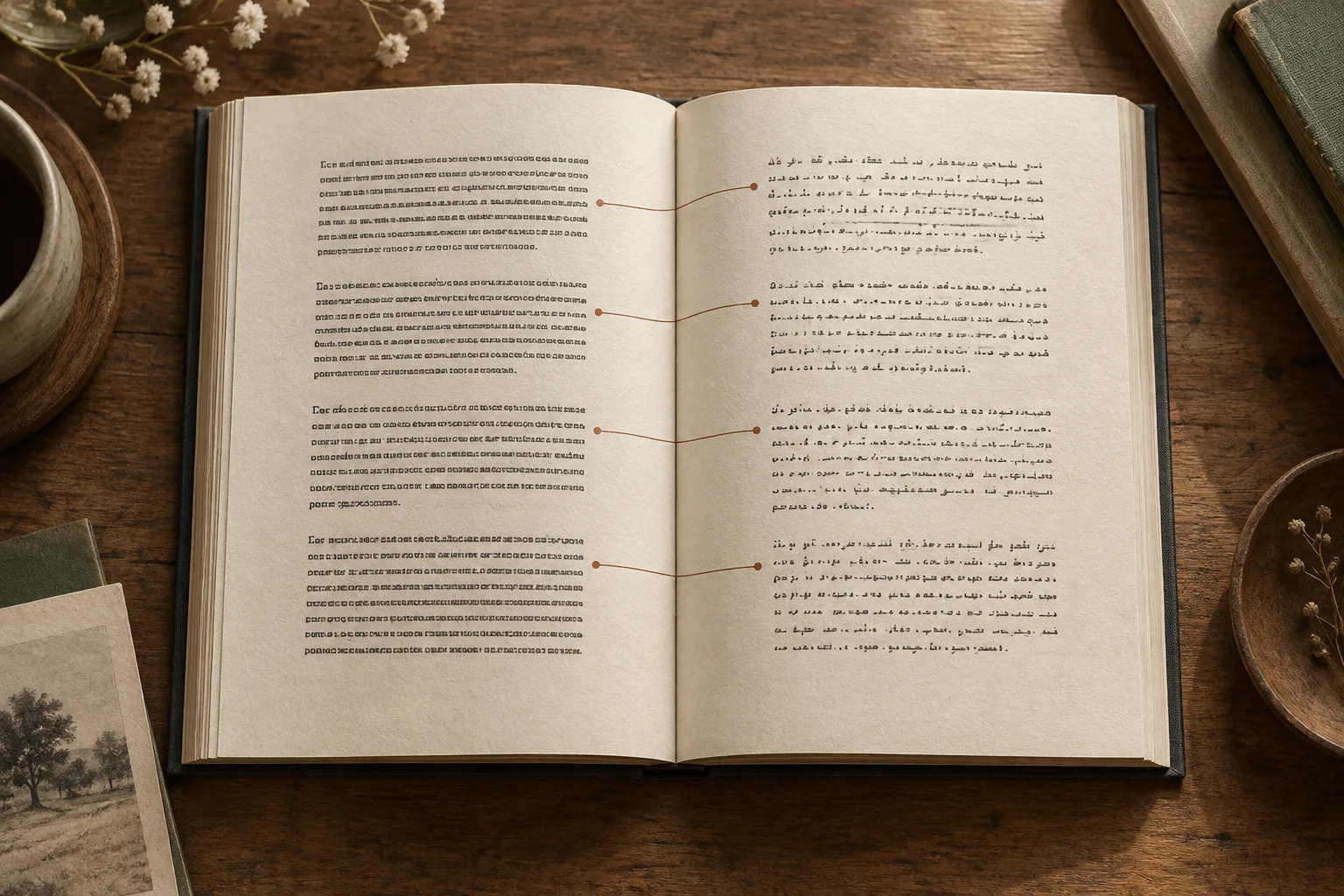
When choosing an EPUB translator, decide what you want to download: a book containing only the translation, or a bilingual edition that keeps the original close by. Whole-file EPUB support, working chapter navigation, and a price that covers the complete book affect the experience more directly than the length of a supported-language list.
The comparison below covers published features and workflows checked on November 10, 2026. It is not a hands-on ranking of translation quality.
How the four tools differ
| Tool | EPUB handling and output | What to check before choosing |
|---|---|---|
| PDF Craft | Upload a complete EPUB, choose a target language, and download an EPUB; select Translation only, Bilingual, or Bilingual inline | Choose the reading arrangement you want, then confirm your translation notes and the current rates |
| OpenL Doc Translator | Its EPUB page offers translated and bilingual downloads and describes preservation of chapters, the table of contents, images, and links | The upload page currently lists an 80 MB limit; full translation is paid, and document translation is separate from OpenL subscriptions |
| O.Translator | Supports EPUB, with a partial translation preview and quote before you decide to process the full document | Preview scope depends on the file and account allowance; previews may cost credits, so check the task's displayed charges and output options |
| BookTranslator.ai | Accepts EPUB, translates whole books, and returns EPUB; charges per book | Displayed prices are estimates calculated more precisely in the next step; minimum charges can affect the cost of a short book |
OpenL documents its file limit, two download versions, and payment terms on its EPUB page. O.Translator explains previews and billing on its EPUB page. BookTranslator.ai describes its file support and pricing on its website. Structure-preservation descriptions in the table come from the providers; assess the actual layout in the downloaded book.
If your source is a scanned PDF, start with a PDF workflow that includes OCR. Renaming the file to EPUB does not convert it, and you do not need to copy out the entire book by hand before uploading it. See PDF Craft's scanned PDF translation guide for that route.
Decide how you want to read a bilingual book
In PDF Craft, “Bilingual” appends a translation after each source text block. “Bilingual inline” appends it within the same text flow. Neither mode produces facing pages or side-by-side columns. Choose “Translation only” for continuous reading of a novel, or a bilingual mode when you want the source nearby for language study or terminology checks.
OpenL's EPUB page explicitly offers both a translated version and a bilingual version. That download arrangement is worth comparing if you want to keep both editions. For other services, check the options shown in the task and the resulting file rather than inferring a particular layout from the word “bilingual.”
Open the download in your usual EPUB reader, increase the text size, jump to a chapter in the middle, and follow a footnote back to the text. This reveals whether the navigation works, how the languages alternate, and how illustrations fit a small screen. For more reading scenarios, see choosing how to read a bilingual EPUB.
Compare the cost of the same book
Usage-based pricing can count different things. PDF Craft charges EPUB translation by usage; consult the current rates and book translation cost guide for the calculation. O.Translator calculates credits from tokens, document analysis, and the selected mode, and shows applicable preview charges before you proceed. BookTranslator.ai charges per book and describes its advertised prices as token-based estimates, with an exact price calculated separately.
Keep the file, target language, and output requirements the same when comparing quotes. Record the cost of the full task rather than applying a “per 100,000 words” headline price to every book. Distinguish preview charges from full translation and an additional translation run. Since OpenL document translation is separate from its subscriptions, an existing subscriber should still check the document task's payment requirements.
If you want to change character names and translate again, check whether that creates a new charge. Settling the main preferences before the first submission avoids having to change direction after receiving the entire book.
Choose around the book you want to read
For a novel, examine a passage with several speakers. Follow who is speaking, how names are handled, and the tone of the dialogue. A descriptive paragraph alone reveals little about those demands. In PDF Craft's “Terminology & Translation Notes (Optional),” you might write: “Keep character names in Japanese, use natural English narration, and preserve differences in politeness between speakers.”
For a technical book, prioritize terminology and access to the original. Specify important abbreviations, product names, and preferred translations, then review sentences containing numbers, units, and negative conditions. The EPUB terminology guide explains how to organize those notes.
For language learning, try the bilingual arrangement on the phone or e-reader you actually use. Reading a translation immediately after each original passage feels different from reading the translation alone. Opening a chapter is more useful for that decision than judging a promotional screenshot on a desktop.
Translate a complete EPUB with PDF Craft
- Open the EPUB translator, then drag and drop your file or use the file picker.
- Select your target language.
- Under “Output mode,” choose “Translation only,” “Bilingual,” or “Bilingual inline.”
- Add any relevant glossary terms or instructions under translation notes.
- Select “Confirm plan,” review your job details, and select “Confirm and start.”
When processing finishes, download the EPUB and keep both the original book and the translation. Continue in your preferred reader; a desktop application is not required for translation. If you later plan to publish or distribute the translation, arrange a full editorial review and confirm the necessary permissions.