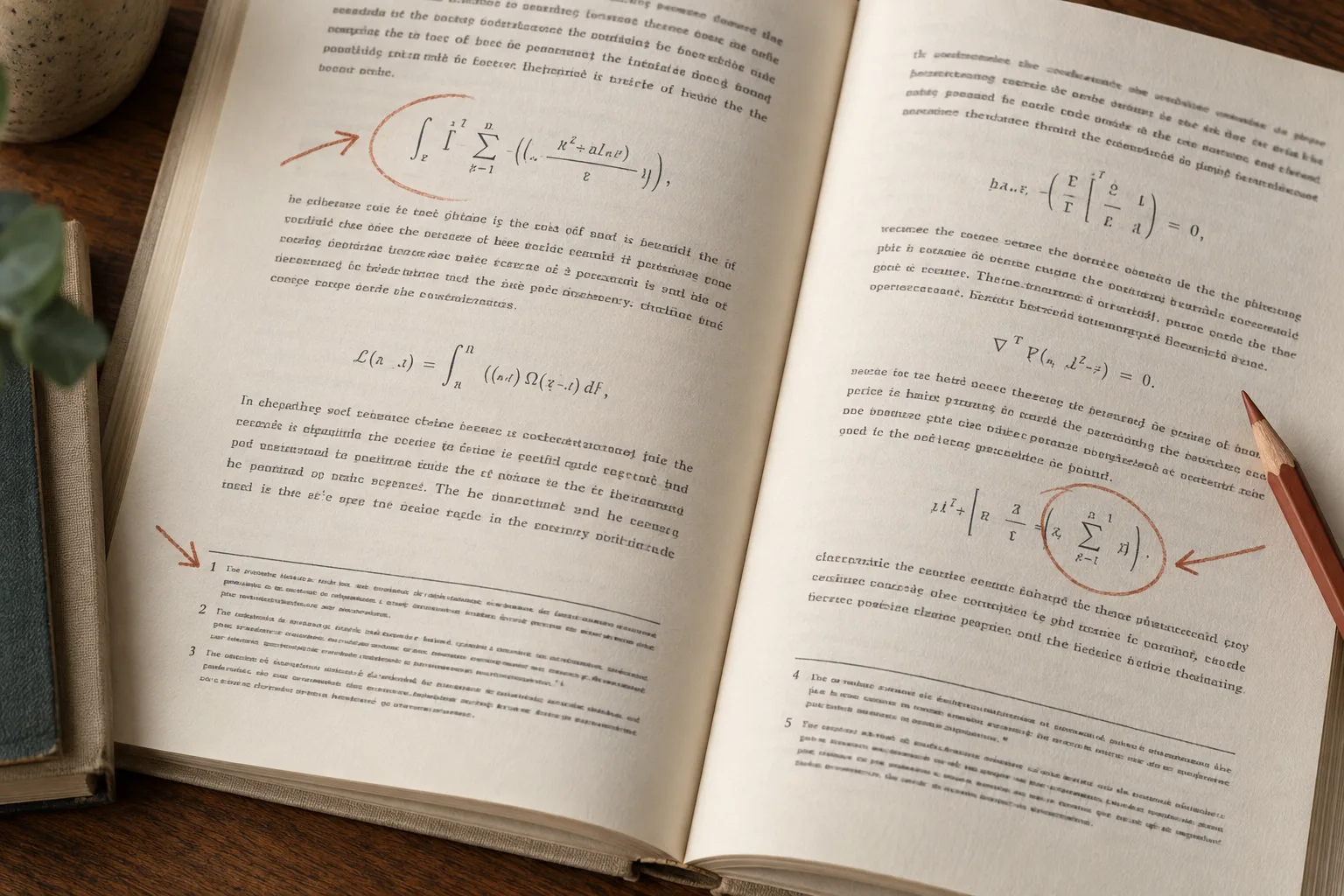
A scanned PDF can look perfectly readable on screen while giving a translator no usable text. The words are pixels on a page. To translate the document, a processing system must recognize them, recover their order, and then produce the chosen output in another language.
The download needs two reviews: whether the source was recognized correctly, and whether the translation preserves its meaning. An elegant sentence is not reassuring if OCR omitted a negative or joined the first column to the second halfway through a paragraph.
Confirm what is actually inside the PDF
Try selecting and copying a sentence from several pages. If you can select only the whole page, it likely contains images. If words are selectable but paste in the wrong order, the text layer may be incomplete or structurally unreliable. A mixed document can include clean digital text, scanned inserts, and pages with different layouts.
Choose difficult pages for this check: a table, small notes, a two-column spread, and a page near a chapter break. Do not judge a long book from its title page.
Inspect the image itself too. Cropped margins, shadows in the binding, tilted lines, and blur affect recognition. If you can obtain a clearer scan, do that before processing. Once a character is absent from the image, a translation system cannot reliably reconstruct it from context.
Decide whether you need PDF, EPUB, or Markdown
The output should match what you will do with the translation:
| Output | Appropriate use | What to check |
|---|---|---|
| Translated PDF | You need a PDF deliverable and care about page presentation | Text fit, labels, tables, and the relationship between text and figures |
| EPUB with translation | You want to enlarge text and keep reading in an ebook reader | Paragraph order, chapter navigation, notes, and reflow |
| Markdown with translation | You want editable text for notes or further work | Headings, formulas, tables, captions, and references |
If you need a translated document that is easy to view page by page, choose PDF output and set your target language. To adjust font sizes for reading or to continue editing, choose EPUB or Markdown: turn off translation to keep the original text, or select a target language when you need a translation. If you want to check the original sentences as you read, choose bilingual EPUB, where each original paragraph is followed directly by its translation.
An EPUB aims for reading structure rather than a facsimile of every printed page. Markdown prioritizes editable content. If the original visual arrangement matters, keep the PDF alongside either result.
Follow the recognition-to-translation workflow
- Keep the original scan. Save an untouched copy with a recognizable filename. It remains the reference for numbers, images, and any passage that looks suspicious later.
- Upload to the PDF Craft workspace. Check current file and processing limits in the interface.
- Choose output format and language. When choosing EPUB or Markdown, turn on translation as needed, then select translation-only or bilingual mode. If you want continuous reading on an e-reader, consider EPUB first.
- Fill in translation instructions. State the subject of the document, then list a few key terms, proper names, or regional phrasing preferences to guide the translation toward expressions you are familiar with.
- Review settings and submit. New users receive trial credits; processing is charged by usage. See Pricing for current rates.
- Download from the completed task. Open the output in an appropriate reader or editor and compare the difficult pages you selected earlier.
PDF Craft handles recognition, document structure processing, and your selected translation within the same task, making it ideal when you want a ready-to-read file directly. If you want to review the raw extraction first, you can turn off translation, convert to EPUB or Markdown, and open it to check paragraphs and text. When you have doubts about small print in older books or text continuing across columns, this makes it easier to pinpoint which step caused the issue.
Treat tables and figures as more than surrounding text
A table can contain the right words in the wrong cells. Compare headers with the values beneath them, check units, and follow a row across the full width. A displaced minus sign or decimal point can alter the interpretation even if the surrounding prose is fluent.
When you come across diagrams or maps, review figure numbers, captions, and in-text references together. Labels inside images may remain in the original language, so keeping the original figure on hand helps you cross-check locations, curves, or other key markers.
For multi-column layouts, read from the end of one column into the beginning of the next to see if the sentence flows coherently. Check captions and footnotes by their respective numbers to verify that they follow the matching chart or body text. The formulas and footnotes checklist provides a more detailed verification method.
Review content and display in separate passes
First compare meaning: names, dates, quantities, negatives, definitions, and important qualifications. If a passage seems odd, check both the recognized source wording where available and the original page image. A translation error and an OCR error call for different corrections.
Then inspect presentation. Look for overlapping text in PDF output, abrupt paragraph joins in EPUB, and flattened table or formula structure in Markdown. Test the file in the reader or editor you actually plan to use, not only in a browser preview.
Use a simple review log with a location and issue, such as “printed page 42, table 3: check the second-column unit.” Printed page numbers may differ from PDF viewer numbers, and reflowable EPUB pages vary with font size. A chapter and distinctive phrase make a better cross-format reference.
Save the corrected or checked edition separately. If your aim is mainly comfortable reading, the scanned PDF to EPUB route may fit better than preserving a fixed page. If your aim is editing extracted content, use PDF to Markdown. Both still require source checks on complex pages.