
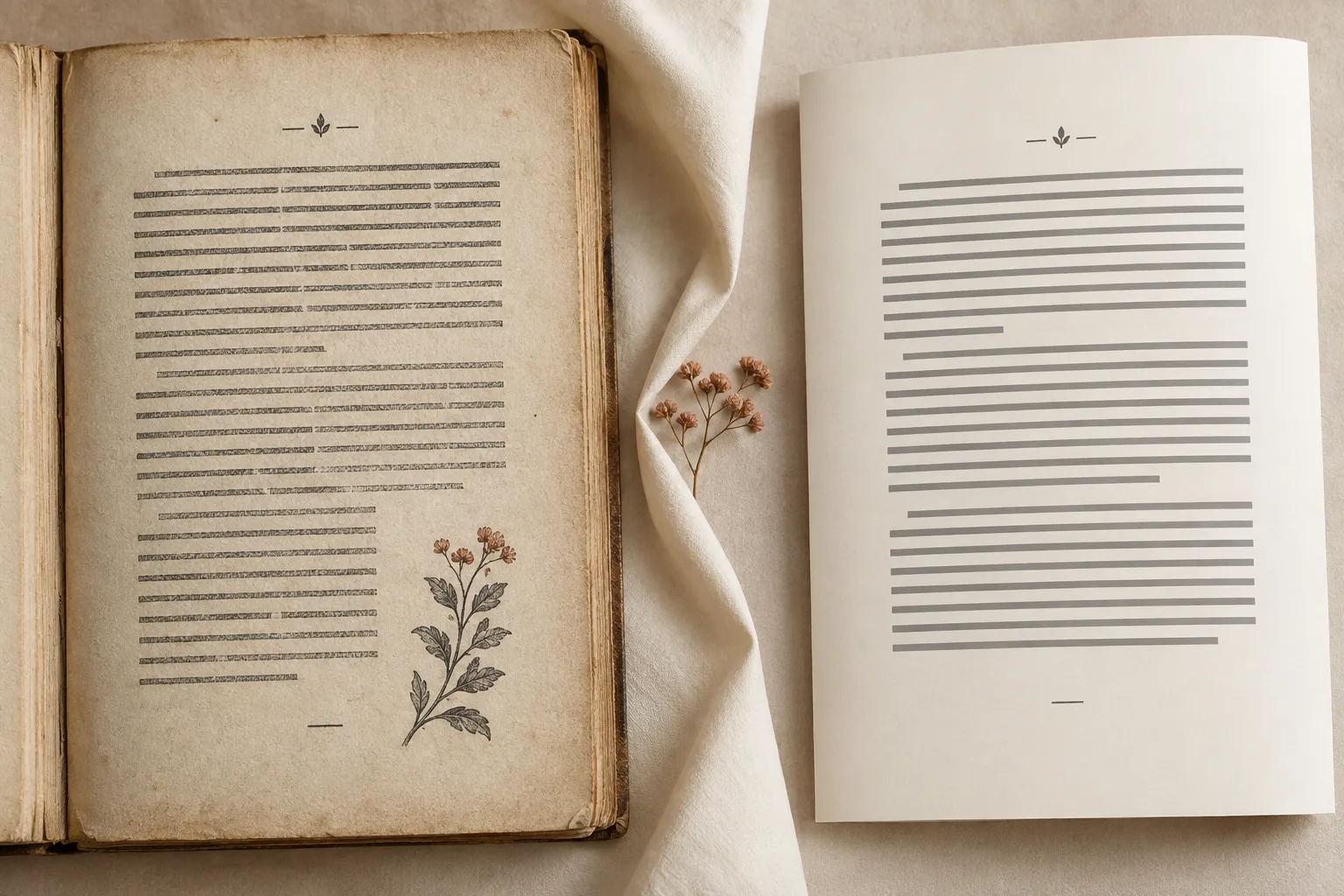
Scanned PDFs often have text that is too small to read comfortably on a Kindle or phone. Zooming in makes each line wider than the screen, forcing you to pan back and forth. Converting to a reflowable EPUB recognizes the words on the page and arranges them into paragraphs that wrap to your screen width as you adjust the font size.
Simply placing full-page images inside an EPUB does not achieve the same result. Before converting, decide whether you need continuous reading text or the original printed page layout.
Which books suit reflow
Novels, memoirs, and nonfiction with continuous prose are good candidates. For example, a long paragraph from a printed page will wrap into more lines on a narrow screen. If you increase the font size, part of that paragraph moves to the next screen while the text remains continuous.
Be more careful with textbooks that feature closely arranged diagrams and text, dense equations, complex tables spanning multiple pages, or annotations embedded between lines. Reflowing can alter the spatial relationship between an illustration and its explanation. Keeping those PDF pages available on a larger screen is often more practical.
For a book with ordinary prose and a few complex figures, you can read the prose in EPUB and return to the PDF for the figures. Do not use the converted page count to check for missing pages: font size and screen width change reflowable pagination.
Create an EPUB in PDF Craft
Open PDF Craft, upload the scanned PDF, and choose EPUB ebook under Create a result. Leave Translate the document off to read in the source language. For a translation, turn it on and select the target language.
Extraction method determines how the content is processed:
| Choice | Suitable material | What to know |
|---|---|---|
| Extraction | Prose where you do not need footnotes | Recognizes content and basic structure; does not extract footnotes |
| Refined extraction | Books and papers whose footnotes you need to retain | Includes footnote extraction and page refinement; uses more credits and takes longer |
For a long book, use a local tool to save a few representative pages as a separate PDF and convert that file first. Testing pages with body text, an illustration, and footnotes reveals far more about the final reading experience than converting only the cover. Before submitting the whole book, check the rates, review your output, extraction, and translation choices, and select Confirm and start.
Download the complete EPUB when the task finishes and open it in an EPUB reader first. Enlarge the text and read a passage that crossed a page boundary in the original PDF. Look for running headers inserted into sentences and check that footnotes correspond to the body text. If a passage is already missing from the file, sending it to another reader will not restore it.
Send the EPUB to Kindle
Amazon's Send to Kindle service accepts EPUB files. Its official help, checked on November 10, 2026, notes that web uploads support documents up to 200 MB and that enabling Add to your library makes them available in your account library. See Amazon's instructions.
On a computer, open Send to Kindle, sign in to the Amazon account used by your e-reader, select the downloaded EPUB, and follow the sending instructions. Then connect your Kindle to the network, sync it, and look for the document in your library.
Amazon receives and processes the file through this service, which is different from copying an .epub file directly over USB. PDF Craft creates the downloadable EPUB; it does not automatically deliver the book to your Kindle. For account, sync, and bilingual reading details, see reading a translated EPUB on Kindle.
Find where small text or broken paragraphs began
Compare the original PDF, the downloaded EPUB, and the Kindle version separately. This helps you locate the problem before repeating a conversion.
If the EPUB still behaves like a full-page image in another reader, check whether the body text is actually an image. Changing the file extension or sending it through another channel cannot replace OCR. You need a conversion result that includes recognized text and reflowed paragraphs.
If the EPUB already has a running header interrupting a sentence, or text from two columns merged together, investigate the recognition and structure processing. Note the location against the original PDF. If you need extensive manual editing, consider Markdown output for working directly on paragraphs and image references.
If the downloaded EPUB works but the Kindle version has broken navigation or images, compare the imported version with the EPUB. If the book is missing from your library, check the sending status, account, and document filters before sending another copy.
Keep the original PDF alongside a useful EPUB for figures, quotations, and page references. Read the prose on a small screen and return to the original page when you need it.